Introduction
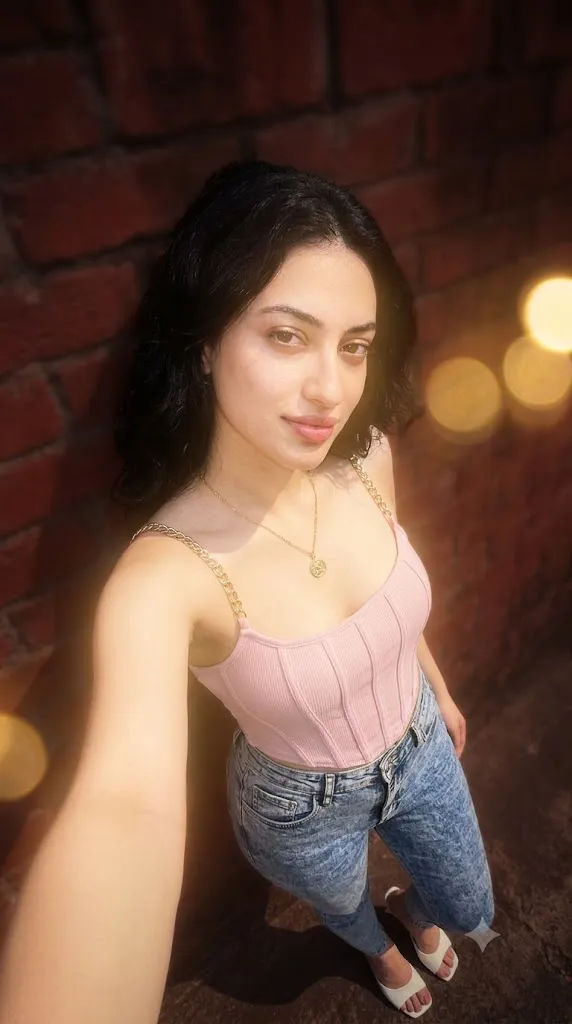
Few photo-editing styles feel as personal and visually attractive as a natural late-night smartphone photograph. The "Dreamy Late-Night Prompt" transforms an uploaded portrait into an aesthetic iPhone lock-screen wallpaper while keeping the person's face, identity, hairstyle, and outfit unchanged. It combines warm camera-flash lighting, a soft golden glow, subtle blur, and a dark reddish-brown background to create the appearance of an authentic late-night iPhone photo.
The goal of this style is to create a realistic and effortless photograph rather than an obviously edited image. Warm flash lighting gives the subject a natural highlight, while the dark background creates a cinematic nighttime atmosphere. The soft golden glow adds warmth and makes the portrait feel dreamy without becoming overly artificial.
The vertical 9:16 composition is especially important because it is designed for smartphone screens. Extra space is kept toward the top of the image so the iPhone lock-screen clock can appear without covering the subject's face.
This style can be used for personal wallpapers, Instagram Stories, profile images, mood boards, and aesthetic social media content. Its combination of realistic skin texture, warm lighting, dark colors, and subtle softness creates a modern and premium appearance.
"Dreamy Late-Night Prompt"
Transform the uploaded photo into a dreamy iPhone lock-screen wallpaper. Keep the person’s face, identity, hairstyle and outfit unchanged. Add warm camera-flash lighting, soft golden glow, subtle blur and a dark reddish-brown background. Make it look like a natural late-night iPhone photo, photorealistic, aesthetic and high-quality. Use a vertical 9:16 composition with space at the top for the lock-screen clock.
How To Use Photo Editing?
Using the Dreamy Late-Night Prompt is simple because the original photograph remains the main reference. First, select a clear and high-quality portrait where the person's face, hairstyle, and outfit are clearly visible.
Upload the photograph into an AI photo-editing or image-to-image generation tool. If the platform provides a reference-image option, use it to maintain the original appearance. Then copy the complete prompt and paste it into the prompt field.
The identity-preservation instructions are important because the goal is to enhance the photograph without changing the person's recognizable appearance. The prompt also tells the AI to create warm camera-flash lighting, a golden glow, subtle blur, and a dark reddish-brown background.
If the first result is not perfect, make small changes rather than completely rewriting the prompt. You can increase or decrease the flash intensity, adjust the golden glow, make the background darker, or reduce the blur.
Tools You Can Use For Prompt Copy and Create Photo
Different AI and photo-editing tools can help create this aesthetic:
- AI image generators can transform reference photographs using detailed text prompts.
- Image-to-image AI tools are useful for maintaining the original photo while changing its lighting and atmosphere.
- Professional photo-editing software can be used for color grading, exposure, contrast, and background adjustments.
- Mobile editing apps are useful for quick edits such as brightness, warmth, sharpness, and cropping.
- AI background tools can create or modify the dark reddish-brown background.
- AI upscaling tools can improve resolution and image clarity.
- Wallpaper editing tools can help prepare the final image for a smartphone's 9:16 screen.
When choosing a tool, look for reference-image support, image-to-image editing, prompt-based controls, aspect-ratio settings, background editing, and high-resolution output.
You can also save useful prompt keywords such as warm camera flash, late-night photography, soft golden glow, subtle blur, dark background, cinematic shadows, photorealistic portrait, smartphone photography, and 9:16 wallpaper for future projects.
How To Edit Photo?
Follow these steps to create the Dreamy Late-Night wallpaper:
1. Select the Reference Photo
Choose a clear portrait with visible facial features, hairstyle, and outfit. Avoid extremely blurry or heavily edited photographs.
2. Upload the Image
Import the selected photograph into an AI photo-editing or image-to-image tool and set it as the main reference.
3. Add the Prompt
Copy the complete Dreamy Late-Night Prompt and paste it into the AI tool's prompt field.
4. Preserve the Identity
Keep the person's face, facial structure, hairstyle, skin tone, and outfit consistent with the original photograph. Avoid unnecessary changes.
5. Add Warm Flash Lighting
Create a warm camera-flash effect that naturally illuminates the face and clothing. The lighting should resemble a real smartphone photograph taken at night.
6. Add a Soft Golden Glow
Introduce a subtle golden glow around the subject. Keep the effect gentle so the image remains realistic.
7. Apply Subtle Blur
Add a small amount of softness or background blur. Keep the face and important details sharp while allowing the background to feel dreamy.
8. Create the Dark Background
Use a dark reddish-brown background to establish the late-night mood. Keep it simple and uncluttered.
9. Set the 9:16 Composition
Generate the image vertically in a 9:16 ratio. Leave sufficient empty space above the subject's head for the lock-screen clock.
10. Make Final Adjustments
Check the face, hairstyle, outfit, lighting, skin texture, and background for unwanted changes or AI artifacts. Adjust brightness, contrast, warmth, and sharpness if necessary.
The final image should look natural, photorealistic, and similar to a genuine late-night iPhone photograph rather than an obviously artificial creation.
Conclusion
The Dreamy Late-Night Prompt provides an easy way to transform an ordinary portrait into an aesthetic iPhone lock-screen wallpaper. Its combination of warm camera-flash lighting, soft golden glow, subtle blur, dark reddish-brown background, and realistic details creates a stylish nighttime atmosphere. The 9:16 vertical composition makes the result ideal for smartphone wallpapers, while the empty space at the top allows the lock-screen clock to remain clearly visible.
For the best results, start with a high-quality reference photograph and use an AI editing tool that supports reference images. Keep the identity-preservation instructions intact and make small adjustments when refining the generated result. Whether you want a personal lock-screen wallpaper, an Instagram Story, or a cinematic late-night portrait, this prompt can turn a simple photograph into a dreamy, photorealistic, and modern smartphone-style image.