Introduction
The world of AI-generated art has exploded with creative styles, and one trend that has captured the attention of designers, hobbyists, and content creators alike is the Emerald Low-Poly Prompt. This style combines the geometric elegance of low-poly design with the rich, jewel-toned depth of emerald green, resulting in visuals that feel both modern and timeless. Low-poly art itself originated from early 3D modeling techniques, where objects were built using a minimal number of polygons to keep rendering efficient. Over time, this technical limitation transformed into a distinct aesthetic choice, prized for its clean lines, faceted surfaces, and crystalline appearance.
When paired with emerald tones, low-poly art takes on a luxurious, almost gemstone-like quality. Think of animals, landscapes, or abstract shapes rendered as if they were carved from polished emerald crystal, catching light across dozens of angular facets. This style has become especially popular for digital wallpapers, brand assets, NFT collections, and social media graphics because it stands out visually while remaining versatile enough to fit many themes.
Creating these images typically involves using AI image generators such as Midjourney, DALL·E, Stable Diffusion, or Leonardo AI, where a well-crafted text prompt does the heavy lifting. The key to a successful Emerald Low-Poly Prompt lies in describing the geometric structure, the color palette, the lighting, and the subject matter with precision. In this article, we'll walk through how to use photo editing tools alongside these prompts, which platforms work best for generating and refining your creations, and a step-by-step approach to editing your final image so it looks professional and polished.
"Emerald Low-Poly Prompt"
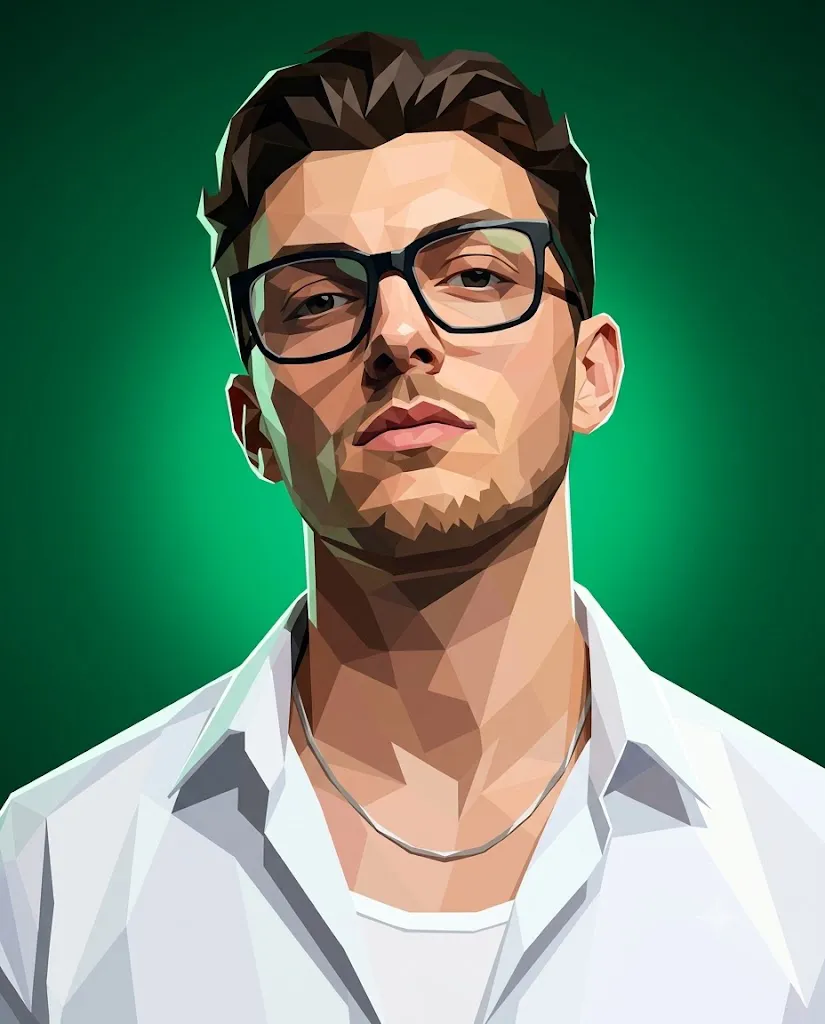
A low-poly geometric 3D vector portrait featuring the exact facial features, facial structure, skin tone, hair style, and beard from the provided reference face photo. Pose & Composition: Low-angle close-up portrait looking slightly down at the camera with a confident, intense expression. Styling & Accessories: Wearing stylish thick-framed black rectangular glasses, a thin silver chain necklace with a small vertical rectangular pendant, and a crisp white unbuttoned collar shirt over a plain white undershirt. Art Style: Modern low-polygon digital art style with sharp geometric faceted shading across the face, skin, hair, and clothing. Distinct polygonal mesh rendering with clean faceted light and shadow planes. Background & Lighting: Rich emerald green studio background with a subtle central radial light glow behind the head. Crisp rim lighting along the silhouette, bold contrast, vibrant color palette.
How To Use Photo Editing?
Photo editing for an Emerald Low-Poly portrait can generally be approached in two ways: transforming an existing photograph or generating a new portrait using an AI image-generation tool.
When working with an existing photograph, the primary goal is to preserve the person's recognizable facial characteristics while changing the visual treatment. The original image can be transformed from a conventional photograph into a geometric artwork with sharp polygonal surfaces and structured light and shadow planes.
For the best results, begin with a clear reference photograph where the face, hairstyle, and beard are visible. A high-resolution image with good lighting gives an AI tool more information to work with. When using an image-to-image workflow, upload the photograph as the reference and paste the complete Emerald Low-Poly Prompt into the prompt field.
Prompt structure is particularly important for this style. A strong prompt should describe the identity reference, facial structure, pose, clothing, accessories, geometric art style, background, and lighting separately. This makes it easier to control the final result and modify individual elements.
For example, you can keep the same facial and clothing instructions while changing the emerald background to another color. Similarly, you can increase the polygonal effect without changing the subject's outfit or pose.
The phrase "sharp geometric faceted shading" is especially useful for communicating the desired low-poly appearance. Additional terms such as "polygonal mesh," "clean geometric planes," "faceted highlights," and "3D vector portrait" can further reinforce the visual direction.
Tools You Can Use For Prompt Copy and Create Photo
Choosing the right tools makes prompt creation and image generation much easier.
1. Choose a generation platform
Midjourney works best for painterly rendering and strong geometric detailing, DALL·E through
ChatGPT is great for conversational prompt editing in real time, and Stable Diffusion through Automatic1111 or ComfyUI offers the deepest customization using low-poly checkpoints or LoRA models.
2. Write and refine your prompt
Describe the subject clearly, such as a fox or a mountain landscape, then specify the style as low-poly and faceted, add the color scheme as emerald green and jewel-toned, and mention lighting details like dramatic reflections or glowing facets to guide the AI toward the right result.
3. Save and organize your prompts
Use a notes app or spreadsheet to catalog successful prompt formulas, track which keyword combinations produced the best results, and explore prompt-sharing communities like PromptHero or Lexica for fresh inspiration.
4. Choose an editing tool
Adobe Photoshop offers professional-grade control for serious edits, Canva is beginner-friendly and great for quick social media touch-ups, GIMP is a free open-source alternative to Photoshop, and Photopea is a browser-based editor that requires no installation at all.
How To Edit Photo?
Follow these steps to create the Emerald Low-Poly look:
1. Select a Reference Photo
Choose a sharp, high-quality portrait where the face, hairstyle, and beard are clearly visible.
2. Upload the Image
Import the reference photograph into an AI image-editing or generation platform.
3. Add the Prompt
Copy and paste the complete Emerald Low-Poly Prompt into the prompt field.
4. Set the Composition
Use a low-angle close-up portrait with the subject looking slightly downward toward the camera. Maintain a confident and intense expression.
5. Add the Styling
Include thick-framed black rectangular glasses, a thin silver chain, a small rectangular pendant, and a crisp white unbuttoned-collar shirt.
6. Apply the Low-Poly Effect
Transform the face, hair, beard, skin, and clothing into geometric polygonal surfaces. Use distinct facets to create realistic highlights and shadows.
7. Create the Background
Add a rich emerald green studio background with a subtle radial glow behind the head.
8. Adjust the Lighting
Use crisp rim lighting around the silhouette and strong contrast to make the geometric facets more visible.
9. Refine the Image
Check the facial details, glasses, beard, necklace, clothing, and polygonal edges for unwanted AI artifacts.
10. Upscale the Final Result
After selecting the best version, use an AI enhancement or upscaling feature to improve resolution and detail.
Conclusion
The Emerald Low-Poly Prompt style offers a unique blend of geometric precision and luxurious color that appeals to a wide range of creative projects. By understanding how to craft effective prompts, choosing the right AI generation tools, and applying thoughtful photo editing techniques, you can consistently produce striking, professional-quality artwork. Whether you're building a personal portfolio, designing brand assets, or simply exploring digital art as a hobby, mastering this workflow, from prompt creation to final edit, will help your Emerald Low-Poly designs truly shine.