Introduction
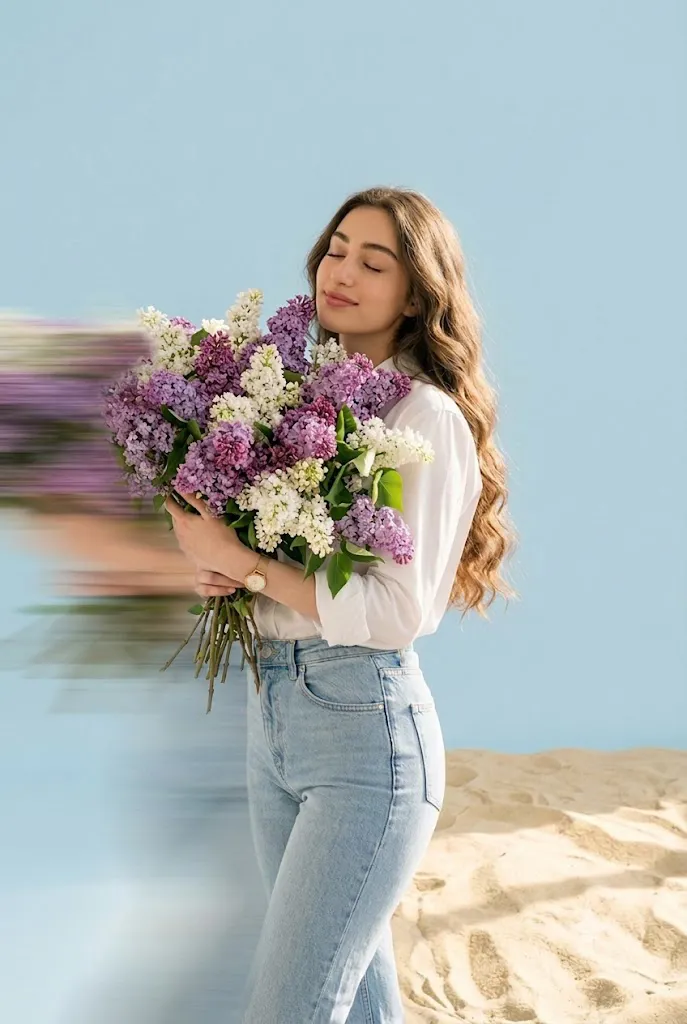
AI image generation has made it easier than ever to create professional-looking portraits with unique visual effects. One of the most eye-catching styles is the Horizontal Motion Drag Effect, where part of the subject appears stretched sideways with a realistic motion blur while the rest of the image remains perfectly sharp. This effect creates the illusion of extreme speed, cinematic shutter drag, or a time-warp moment frozen in a single frame.
"Horizontal Motion Drag Prompt"
Apply a realistic horizontal drag distortion effect to the image. Create a stretched motion-smear passing across the left side of the subject's body, as if part of the person is being pulled sideways at high speed. The distortion should feature long horizontal motion blur lines with smooth edge blending, while the rest of the subject remains perfectly sharp and in focus. Keep the face, lighting, colors, perspective, and background completely unchanged. The effect should look like a cinematic shutter-drag or time-warp glitch, not a digital glitch or duplicated subject. Preserve all original details and make the stretch appear naturally integrated into the scene.
Unlike traditional digital glitches that duplicate or distort the entire subject, a realistic horizontal motion drag blends naturally into the image. The face, lighting, colors, perspective, and background remain untouched, while a smooth horizontal smear extends from one side of the body. The result is a dramatic, editorial-quality portrait often seen in fashion campaigns, movie posters, and high-end creative photography.
With modern AI tools, you no longer need advanced Photoshop skills to achieve this effect. All you need is a well-written prompt and an AI image generator capable of understanding realistic motion effects. Whether you are creating content for Instagram, YouTube thumbnails, posters, or portfolio images, the Horizontal Motion Drag Prompt can transform an ordinary portrait into something truly cinematic.
How To Use Photo Editing?
Using the Horizontal Motion Drag Prompt is simple when you understand how AI interprets image editing instructions. Start by selecting a clear, high-resolution portrait with good lighting and sharp details. Images with a clean background usually produce the best results because the motion effect blends more naturally.
Next, copy the Horizontal Motion Drag Prompt into your preferred AI image editing platform. If the platform supports image-to-image editing, upload your original photo and paste the prompt into the editing section. Make sure your prompt clearly specifies that only the left side of the subject should receive the horizontal drag distortion while everything else remains untouched.
The most important instructions include preserving the facial features, maintaining the original lighting, keeping the background unchanged, and avoiding duplicated body parts. Instead of asking for a digital glitch, describe the effect as a realistic cinematic shutter drag or time-warp motion smear. AI models understand descriptive language better than generic commands.
Once the prompt is ready, generate several versions. Slightly adjusting the strength of the motion blur or the length of the stretch can dramatically change the final appearance. Choose the version that looks the most natural and realistic.
Tools You Can Use For Prompt Copy and Create Photo
There are many AI platforms that work well with cinematic editing prompts. Some of the most popular options include:
1. ChatGPT Image Generation – Great for creating detailed AI prompts and generating realistic edited images with natural lighting and professional composition.
2. Google Gemini – Offers impressive image editing capabilities and can interpret complex prompt instructions while preserving facial identity.
3. Grok AI – Useful for experimenting with creative visual styles and realistic portrait transformations.
4. Adobe Firefly – Excellent for professional image editing with high-quality generative AI features and commercial-friendly results.
5. Leonardo AI – Popular among digital artists for producing detailed cinematic portraits and creative visual effects.
6. Flux AI Models – Known for realistic image generation, excellent texture quality, and accurate prompt understanding.
7. Midjourney – Produces highly artistic and cinematic portraits with exceptional lighting and dramatic visual styling.
8. Photoshop Generative Fill – Perfect for refining AI-generated motion effects and making small corrections while maintaining photo realism.
Each platform interprets prompts differently, so testing your prompt across multiple tools can help you achieve the best final image.
How To Edit Photo?
Follow these steps to create a realistic Horizontal Motion Drag portrait.
Step 1: Choose a High-Quality Image
Select a portrait that is sharp, well-lit, and high resolution. Images with clean backgrounds produce better AI results.
Step 2: Open Your AI Image Editor
Launch your preferred AI editing platform and choose the Image-to-Image or Edit Image option.
Step 3: Upload the Original Photo
Upload the portrait you want to transform. Make sure the original image has good detail and natural lighting.
Step 4: Copy the Horizontal Motion Drag Prompt
Paste your complete AI prompt into the editing box. A detailed prompt helps the AI understand exactly which areas should change.
Step 5: Lock Facial Identity
Include instructions such as preserving facial structure, hairstyle, skin tone, lighting, expression, and overall identity. This prevents unnecessary alterations.
Step 6: Apply the Motion Drag Effect
Describe the effect precisely:
- Add a realistic horizontal drag distortion.
- Stretch only the left side of the body.
- Create long horizontal motion blur streaks.
- Blend the edges smoothly.
- Keep the face perfectly sharp.
- Preserve lighting, perspective, and colors.
- Do not duplicate the subject.
- Avoid digital glitch effects.
Step 7: Generate Multiple Versions
Create several variations using different motion strengths. Some images may look more natural with a shorter drag, while others benefit from a longer cinematic smear.
Step 8: Select the Best Result
Compare the generated images and choose the version with the cleanest blending, realistic motion lines, and preserved facial details.
Step 9: Perform Final Touch-Ups
If necessary, refine the image using Photoshop or another editing program. Minor adjustments to contrast, sharpness, and color grading can make the portrait appear even more cinematic.
Step 10: Export in High Resolution
Save the finished image in the highest quality available. High-resolution exports are ideal for social media, posters, websites, digital portfolios, and professional presentations.
Conclusion
The Horizontal Motion Drag Prompt is an excellent way to create visually striking AI portraits that combine realism with cinematic creativity. Instead of relying on artificial-looking glitches, this effect simulates the natural appearance of a camera shutter drag, producing smooth horizontal motion blur while keeping the subject's face and the rest of the image perfectly sharp.
By using a detailed prompt, choosing the right AI platform, and following a structured editing workflow, you can consistently produce professional-quality portraits with dramatic movement and editorial appeal. Whether you are a content creator, photographer, designer, or AI art enthusiast, mastering this technique will help your images stand out on social media, in creative portfolios, and across digital platforms.
Experiment with different motion lengths, blur intensity, and compositions to develop your own signature style. With practice and the right prompt, you can turn an ordinary portrait into a cinematic masterpiece that captures both motion and emotion in a single frame.